
User Groups
Learn how to create user groups in V7 Go to organize workspace members and grant bulk access to workflows, hubs, and folders.
User Groups
User groups let you organize workspace members into reusable teams, then grant access to workflows, hubs, or folders in one step by inviting the group instead of each person individually.
What are user groups?
A user group is a saved list of people in your workspace.
Instead of inviting 10 people one by one, you invite the group once. Everyone in that group receives access through a single group permission.
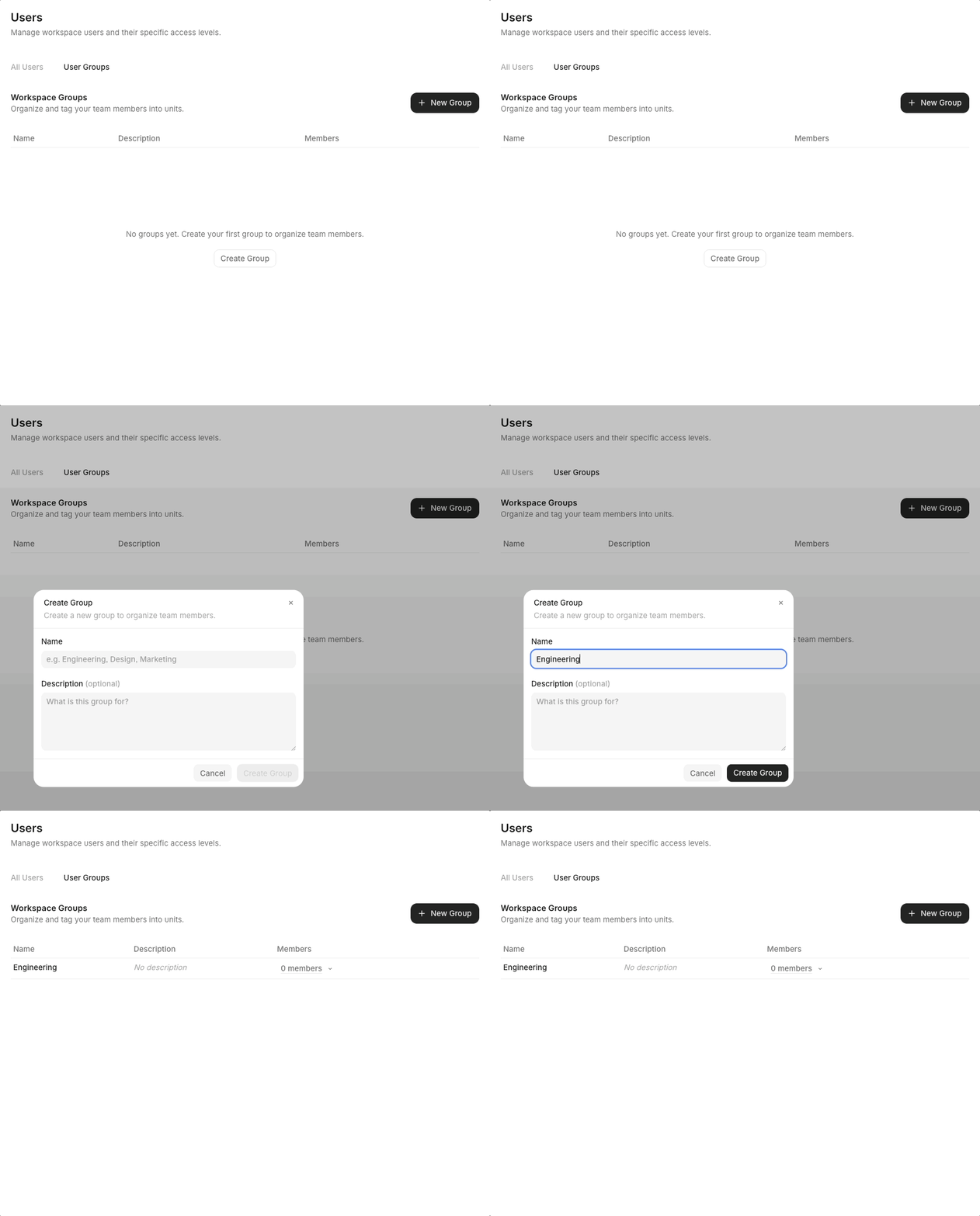
How to create a user group
-
Go to Workspace Settings
-
Select Users
-
Select User Groups
-
Click + New Group
-
Enter a name and optional description
-
Click Create Group
How to add members to a group
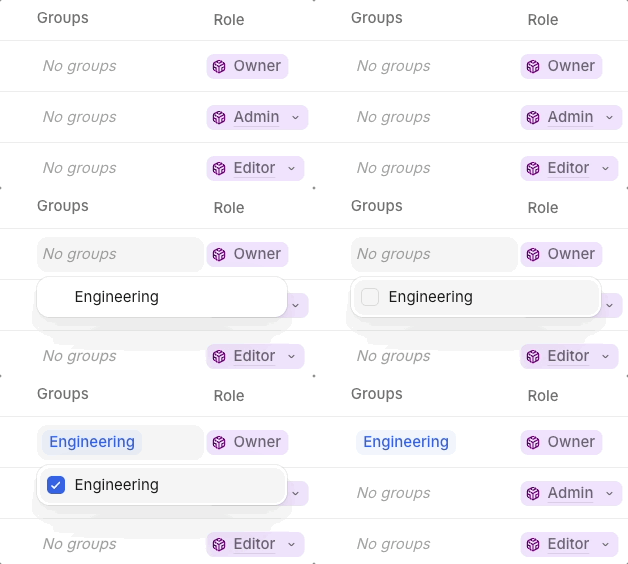
- Open All users
- Click into the Groups column for the user
- Select the group from the drop down list
People can belong to multiple groups at the same time
How to share resources with a group
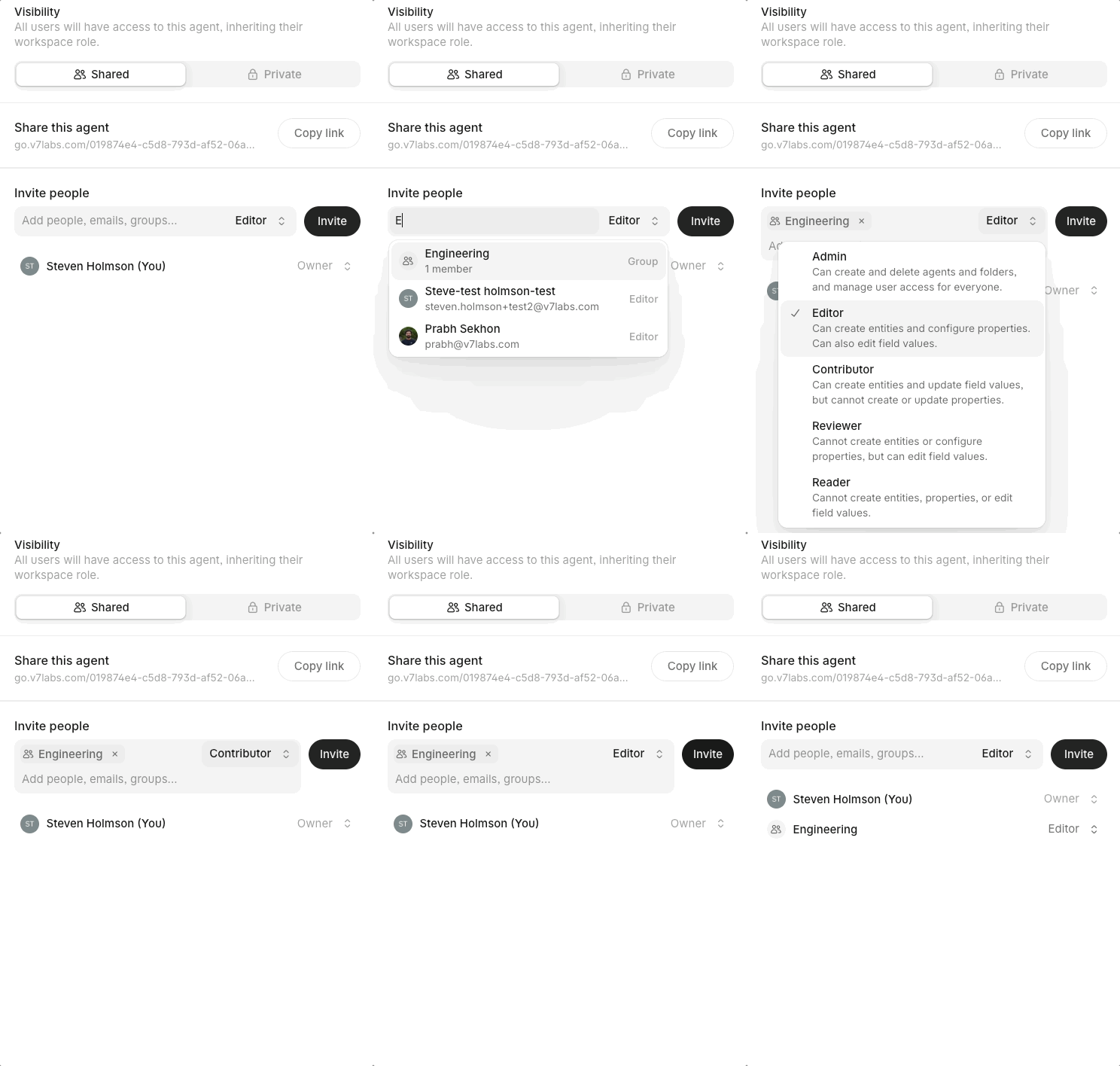
- Open the workflow, hub, or folder you want to share
- Click Share or open the Permissions dialog
- Under Invite PeopleSelect the group from the list
- Choose a role for the group
- Click Save
Everyone in that group now has access at the assigned role level.
Key behaviors
| Behavior | Description |
|---|---|
| Bulk-sharing shortcut | Groups save time when you need to grant the same access to multiple people |
| Workspace-level | Create a group once and reuse it across all workflows, hubs, and folders |
| Multiple memberships | A person can belong to several groups |
| Additive access | Group access adds to any direct or inherited access a person already has |
| Removal behavior | If you remove someone from a group, they lose access granted by that group. They keep any access from direct invites or inherited permissions |
Tip: User groups make onboarding, offboarding, and permission management faster and more consistent. Add new team members to the right groups, and they automatically receive access to all relevant resources.
Updated about 2 months ago
What’s Next
If you have any questions or feedback about this page, please reach out to us at [email protected]