
Data Stores
Store and reuse structured information across V7 Go Workflows, Chats, and Apps.
Data Stores in V7 Go
Data Stores let you save structured information in your V7 Go workspace and reuse it across Workflows, Chats, and Apps. Unlike data stored in an individual workflow run, Data Store values remain available between runs and can be updated as your processes change.
With Data Stores you can:
- Share reference information between multiple workflows without duplicating it
- Look up customer records, identifiers, or other structured data by key
- Track processed items, job statuses, and other information across workflow runs
- Let Workflow Properties and Agents read or update shared values
- Review and restore earlier values (when version history is enabled)
Availability: Data Stores is in early access. To enable it for your workspace, contact your Account Manager or our sales team.
How Data Stores work?
A Data Store holds keys and their associated values. A key identifies an entry, and its value contains the information you want to store. Values can be JSON objects, arrays, strings, numbers, booleans, or null.
For example, a Data Store named Customer Ledger might contain:
| Key | Value |
|---|---|
customers/CUST-1012 | {"name":"Example Ltd","status":"active"} |
invoices/INV-1320 | {"total":1204.55,"currency":"EUR","status":"pending"} |
jobs/JOB-86 | {"processed":true} |
Keys must be unique within their Data Store. Writing a new value to an existing key replaces its current value. When version history is enabled, the previous value is retained as an earlier version.
Organize entries with prefixes
You can group related keys using a consistent naming convention, such as:
customers/CUST-1042
customers/CUST-1043
invoices/2026-09/INV-1042
invoices/2026-10/INV-1098
The / characters are part of the key name, not actual folders. They make it easier to browse keys by prefix and retrieve groups of related entries. Use stable identifiers rather than row numbers that may change.
Create a Data Store
Workspace Owners and Admins can create Data Stores.
- Open your V7 Go workspace.
- Select Knowledge in the top navigation and open Data Stores.
- Click + New Data Store button in the top right
- Enter a name and, optionally, a description.
- Choose the Data Store visibility setting (Private by default) and confirm to create the new Data Store.
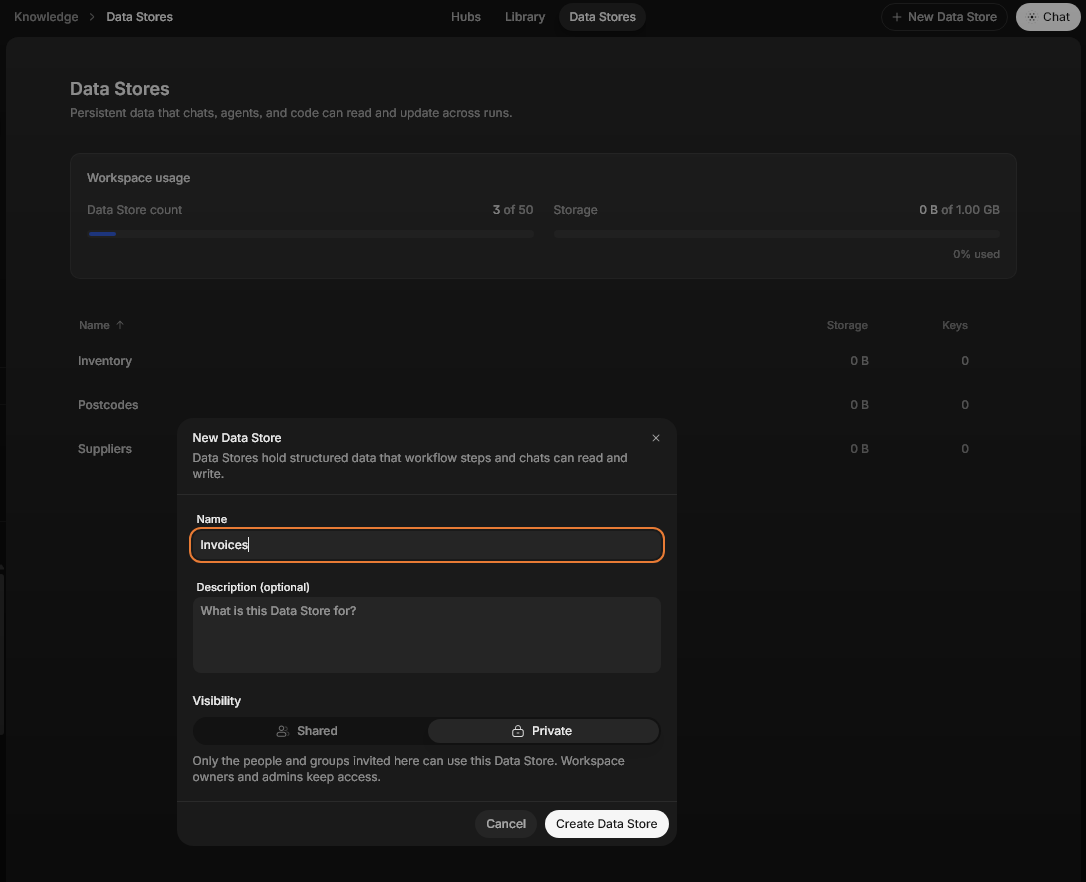
V7 Go automatically assigns a slug based on the original name. For example, Customer Ledger becomes customer_ledger. This slug is used when referring to the store in Python and remains unchanged if you later rename the store.
Add and manage entries
After creating a Data Store, you can add keys and their JSON values.
-
Go to Knowledge → Data Stores and open the store.
-
Click on the + New Entry button.
-
Enter a non-empty key, such as
customers/CUST-1042. -
Enter its value as valid JSON, for example:
{ "name": "Example Ltd", "status": "active", "region": "EU" } -
Click on Save entry to confirm
From the Data Store page you can also:
- Browse entries By prefix or in the Last updated view
- Search keys using a case-insensitive text match
- Edit or delete existing entries
- Import entries from a CSV file
- View key counts and storage usage
- Rename or delete a Data Store
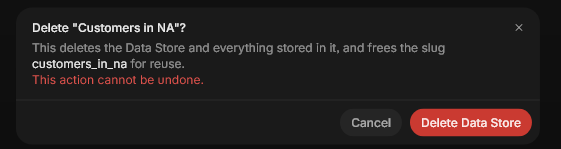
Important: Deleting a Data Store deletes its entries and breaks existing attachments to that store. Deleting an individual key is different: its previous values may remain available through retained version history.
Use a Data Store in a Workflow
Data Stores can be attached to Python code properties, Go Agent properties, LLM properties, and model properties that support tool calling.
- Open the workflow and select the property that should access the Data Store.
- In the property editor, select Add inputs, or type
@in the prompt or code editor. - Select the Data Store you want to use.
- Save the property and test it with a workflow run.
A property can access only the Data Stores that have been explicitly attached to it. Mentioning a slug in Python code does not, by itself, give the property access.
Read data in a Python property
For example, you can retrieve an invoice by its key:
ledger = V7Go.data_stores["customer_ledger"]
entry = ledger.get("invoices/INV-1042")
result = entry.value if entry is not None else None
get() returns the stored entry, or None if the key does not exist. Each entry includes its key, value, version, created_at, and updated_at values.
V7Go is available automatically in workflow Python properties. If you are running standalone Python code through Go Agent, import it with from v7go import V7Go.
You can also reference a Data Store using an @ mention in the property editor rather than writing its slug directly. The editor displays the store's name and resolves the mention when the property runs.
Write data in a Python property
To create an entry or replace an existing value, attach the Data Store with Allow writes enabled and call put():
ledger = V7Go.data_stores["customer_ledger"]
write_result = ledger.put(
    "invoices/INV-1042",
    {
        "total": 1204.55,
        "currency": "EUR",
        "status": "approved",
    },
)
result = write_result.entries[0]
Writing a different value creates a new version of the key. Writing the same JSON value again does not create another version.
Access: A Data Store attached as read-only cannot be modified by the property. A Python write attempt raises
DataStoreReadOnlyError. Enable Allow writes only when the property needs to change the store.
Find related entries
Use list() with a prefix when several entries share the same naming pattern:
ledger = V7Go.data_stores["customer_ledger"]
page = ledger.list(prefix="invoices/", first=100)
result = [entry.key for entry in page]
The results contain previews rather than guaranteed complete values. Call get() on a specific key when you need its full JSON value.
You can also search values using JSONPath. For example, to find pending invoices:
page = ledger.search(
    "$ ? (@.status == $status)",
    vars={"status": "pending"},
    prefix="invoices/",
    first=100,
)
result = [entry.key for entry in page]
JSONPath searches are limited to 1,000 candidate keys. Use a more specific prefix if a search is rejected for being too broad.
Use a Data Store in a Chat
You can attach Data Stores to Go Agent conversations to let the Agent retrieve information or update stored values.
- Open a chat with Go Agent.
- Type
@and select the Data Store you want to attach. - Ask the Agent to look up or work with the information in the store.
- If the agent should update data, open the Data Store access menu in the message composer and enable Allow writes.
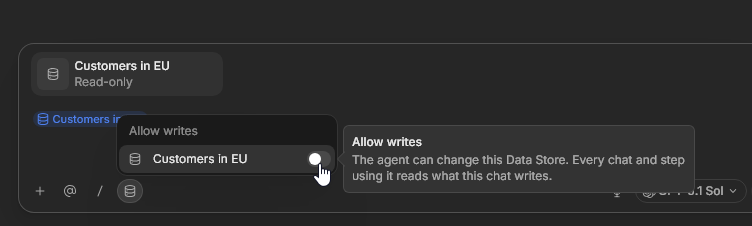
By default, attachments are read-only. With read-only access, the agent can retrieve and search entries and inspect retained history. With write access, it can also create, update, delete, and restore entries.
For example, you might ask:
Find the entry for
invoices/INV-1042in the Customer Ledger Data Store and tell me its current status.
Or, with write access enabled:
Update the status of
invoices/INV-1042toapproved, leaving its other fields unchanged.
Important: Data Store permissions accumulate within the same conversation. If you previously enabled write access to a store, switching a later message to read-only does not revoke that earlier grant. Start a new conversation when you need a fresh read-only scope.
Access and permissions
Access is controlled at two levels: the user's workspace role and the access granted to an individual property or chat.
| Access level | What it allows |
|---|---|
| Workspace roles | All current workspace roles can read Data Stores; Editors can also write entries; owners and admins can create, edit, and delete stores. |
| Read-only attachment | A property or chat can retrieve and search data, but cannot change it. |
| Read-write attachment | A property or chat can retrieve data and perform supported changes, including creating, updating, and deleting entries. |
A Data Store is shared within the workspace by default. It is not private storage for a single person. Avoid storing credentials, secrets, or sensitive personal information.
View and restore earlier values
When you update an existing key, V7 Go retains earlier values up to its version-history limits. This lets you review how an entry changed and restore a previous value.
- Open Knowledge → Data Stores and select the store.
- Find the key and click on View history.
- Review the available versions and their change details.
- Select an earlier version and click Restore.
- Confirm the restoration.
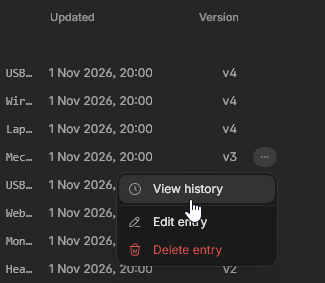
Restoring a previous value creates a new current version; it does not erase the intervening history. The history can include when the value was changed and its source, and who changed it when that information is available.
Data Stores Limits
Data Stores have the following system limits:
| Limit | Value |
|---|---|
| Data Stores per workspace | 50 |
| Total stored JSON across all Data Stores in a workspace | 1 GB, including retained history |
| Key length | 1 - 1,024 characters |
| Size of a single JSON value | 1 MB |
| Retained history per key | Up to 50 archived values, subject to a 1 MiB history budget after the newest 3 |
| List or search results per page | 100 by default; up to 1,000 |
| Python batch operations | Up to 100 puts and deletes combined |
| JSONPath search candidates | Up to 1,000 keys |
Values must be valid JSON and keys must be non-empty strings.
Things to know
- Changes do not automatically recalculate workflow properties. A Data Store is an external dependency: updating it does not automatically trigger new calculations in properties that read it. Run or recompute the relevant property when you need fresh data.
- Concurrent writes need care. If two workflow runs update the same key, the last committed unconditional write remains. Python supports
expected_versionfor conditional writes to prevent overwriting a value that changed after you read it. - Use different keys for different records. A consistent key scheme makes it easier to retrieve information and reduces conflicts between workflow runs.
- A store must be attached. A Property or Agent does not gain access to every Data Store in the workspace automatically.
- Only key-value Data Stores are currently supported. They are useful for exact lookups and structured records, but not a replacement for databases requiring joins, large-scale aggregations, or advanced queries.
FAQ
How is a Data Store different from a workflow property?
A workflow property holds information associated with a workflow run. A Data Store keeps shared information that can be accessed across different runs and workflows in the same workspace.
Can multiple workflows use the same Data Store?
Yes. Attach the store to each property that needs it, and choose read-only or read-write access for each attachment.
Will updating a Data Store automatically update my workflow results?
No. Recompute the relevant properties to use the latest values.
Can I undo an accidental change or deletion?
When retained version history is available, you can restore an earlier value or a deleted key. Deleting the entire Data Store removes its entries and should not be treated as recoverable. [VERIFY history/restore rollout]
Can I use Data Stores from Python?
Yes. Attach the Data Store to a supported Python property and access it through V7Go.data_stores["your_store_slug"]. Grant Allow writes if the property needs to change data.
Are Data Stores private?
No. Data Stores are workspace-visible by default and are subject to workspace permissions. Do not use them to hold secrets or sensitive personal data.
Need help? Click the Support button in the app or reach out to [email protected].
Updated 40 minutes ago