
Configuration history
Use Configuration history to view and restore earlier versions of a property's setup, including its prompt, tool, inputs, schema and skill arguments.
Configuration history keeps a record of every change to a property's setup in your Workflow. You can look back at earlier versions, see what changed and restore a version you want to go back to.
What is configuration history?
Every property in a Workflow keeps a history of revisions. Each revision records the property's whole configuration at that point, including its:
- Name
- Prompt
- Tool
- Inputs
- Schema
- Skill arguments
Use the history to find out how a property got to its current setup, or to go back to an earlier version that worked better.
Prompt versioning
You can track and restore earlier prompts. But configuration history goes further. It also tracks changes to the property's tool, inputs, schema, name and skill arguments, so you can see the full picture of each change.
Open Configuration history
-
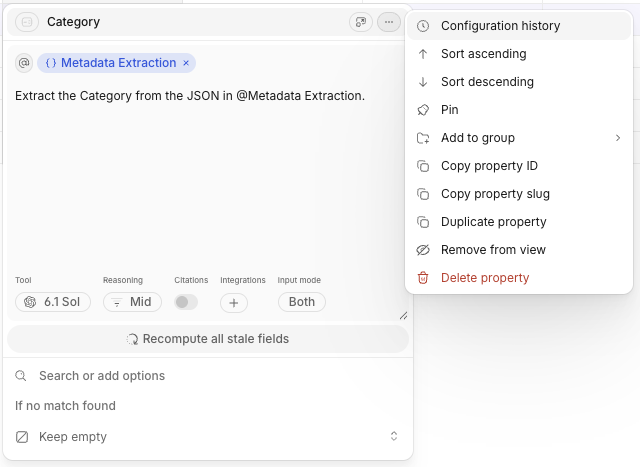
Open the property editor for the property you want to check, then click the three-dot menu in the top-right corner.
-
Open Configuration history.
-
The Configuration history panel will open on the right-hand side, displaying the current and previous revisions.
Read the history
Each revision shows the property's configuration at one point in time. Read through the revisions to see how the property has changed and to find the version you need.
When you compare revisions, check which fields changed. For example, a property may have kept the same prompt while its tool or schema changed. Knowing exactly what changed helps you work out why the property's results changed.
You can open a revision to view its full configuration. The preview is read-only, so viewing a revision doesn't change your property.
Restore a revision
-
Open Configuration history from the property editor.
-
Select the revision you want to go back to and check its configuration.
-
Restore the revision.
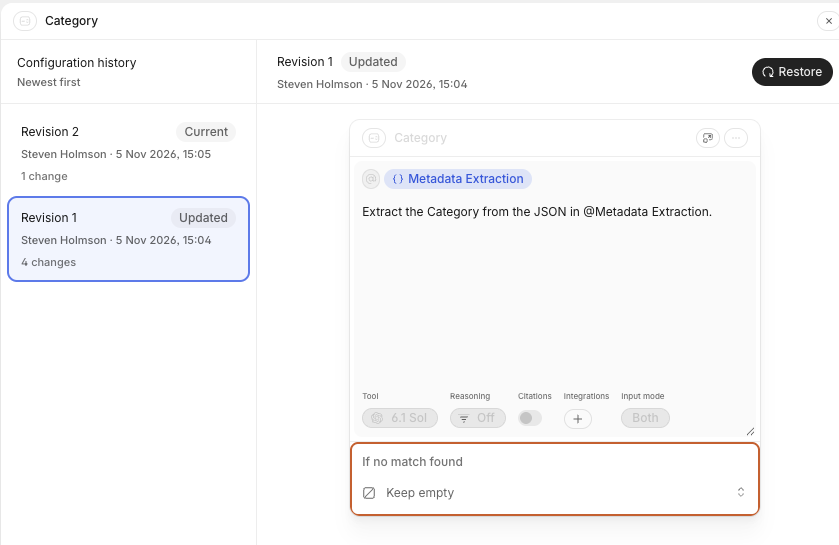
Note: Restoring a revision restores the property's configuration, not previously computed values. Because LLM outputs are not deterministic, a restored prompt may produce different results when run again.
Before you restore, check every field in the revision, not only the prompt. A revision brings back the whole configuration, including the tool, inputs, schema and skill arguments.
If you run the property again after a restore, the run is a model interaction and consumes tokens like any other run.
What does configuration history cover?
Configuration history applies only to the property's own configuration.
| Covered | Not covered |
|---|---|
| The property's own configuration | Previously computed values |
| Prompt, tool, name, inputs, schema and skill arguments | View membership and layout |
| Earlier configurations of an individual property | Workflow-level rollback |
Restoring a revision doesn't change which views the property appears in or how those views are laid out. It also doesn't bring back values the property produced in the past.
Need help? Click the Support button in the app or reach out to [email protected].
Updated about 1 hour ago