
Budgets
Set workspace and workflow spending limits in V7 Go. Control AI costs with budget policies, tracking, and automatic alerts.
Budgets
Budgets let workspace admins set token and spend limits on AI activity. Use them to prevent runaway costs, give teams predictability, and monitor consumption in real time.
Access Budgets from Settings → Budgets.
What are Budgets?
A budget policy defines a spending cap that automatically renews at the end of each period. You configure:
- Budget amount — Enter in dollars. Toggle between USD and Tokens depending on whether cost or model consumption matters more to you.
- Period — Choose Daily, Weekly, or Monthly. Each period must be unique per policy, but you can stack multiple periods on the same workflow (e.g., a daily + weekly cap for layered protection).
Workspace Budgets vs Workflow Budgets
V7 Go offers two levels of budget control:
| Type | Scope | Use case |
|---|---|---|
| Workspace Budgets | Applies across all Go activity in the workspace | Set a hard ceiling on total workspace spend |
| Workflow Budgets | Applies to a specific workflow | Limit spend on individual workflows |
When you create a Workflow Budget, you select the workflow from a searchable dropdown of all workflows in your workspace.
Create a Budget Policy
-
Go to Settings → Budgets.
-
Click Add Budget.
-
Choose Workspace Budget or Workflow Budget.
-
For Workflow Budgets, select the workflow from the dropdown.
-
Set the Period (Daily, Weekly, or Monthly).
-
Enter the Budget amount in dollars or tokens.
-
Save the policy.
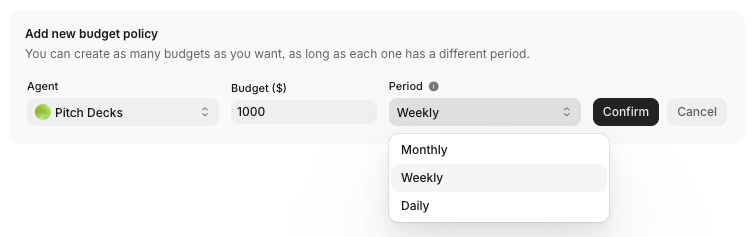
The budget takes effect immediately and renews automatically at the end of each period.
Default Limit vs Current Period Limit
Budget policies have two limit types:
- Default limit — The recurring cap that refreshes automatically each period.
- Current period limit — A one-off override for the current period only.
Use the current period limit to temporarily adjust spend without changing your standing policy. For example, if you set a $200 monthly default but need $25 more this month, edit the current period limit to $225. When the period resets, the budget returns to $200.
To edit the current period limit:
-
Click on the budget policy.
-
Adjust the Current period limit field.
-
Save.

Track Spend
The Budgets page displays live consumption data for each policy:
- Workflow name (for Workflow Budgets)
- Period and start date
- Default limit
- Current spend vs limit progress bar
The progress bar turns orange as you approach the limit and red when near exhaustion. Toggle between dollar and token views.
Budget Widget in Workflow View
Each workflow displays a budget widget at the bottom left of the workflow view. The widget shows:
-
Current spend
-
Budget cap
-
Reset date
-
Progress bar
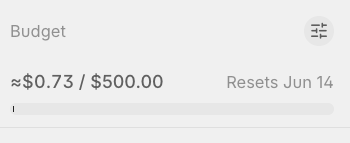
Click the settings icon on the widget to jump directly to the Budgets page.
Budget Alerts
V7 Go sends automatic email alerts to workspace admins at:
- 75% of budget consumed
- 90% of budget consumed
- 100% of budget consumed
Alerts apply to both Workspace and Workflow Budgets.
Note: Full spend reporting is available separately on the Reports page. Budgets are workspace-level or workflow-level only — per-user budget controls are not available.
Delete a Budget Policy
-
Go to Settings → Budgets.
-
Click on the budget policy you want to remove.
-
Click Delete.

Deleted policies stop applying immediately and cannot be restored.
What happens when you hit a limit?
When a budget threshold is reached:
- Further spend in that scope is blocked immediately.
- The block remains until the next billing period starts or you raise the budget.
- Other scopes (workspace or other projects) continue to operate normally if they have remaining budget.
Updated about 1 month ago
What’s Next
If you have any questions or feedback about this page, please reach out to us at [email protected]