
MCP Connectors in Workflows
Use MCP Connectors in Workflows
MCP connectors let your workflows interact with external tools and services. When you assign MCP tools to a property, the LLM calls those tools automatically when the property computes.
The LLM you select for the property handles the tool output and reformats it to match the property type. For example, if your property is a Text field, the LLM converts the MCP tool response into text.
How to Add MCP Tools to Workflow Properties
- Open your Workflow and add a new Property
- Select any property type (Text, Number, Single Select, etc.)
- Click the Integrations section
- Select MCP Connectors
- Browse available tools and check the ones you need
- Write your prompt to instruct the LLM how to use the selected tools
- Click away to save
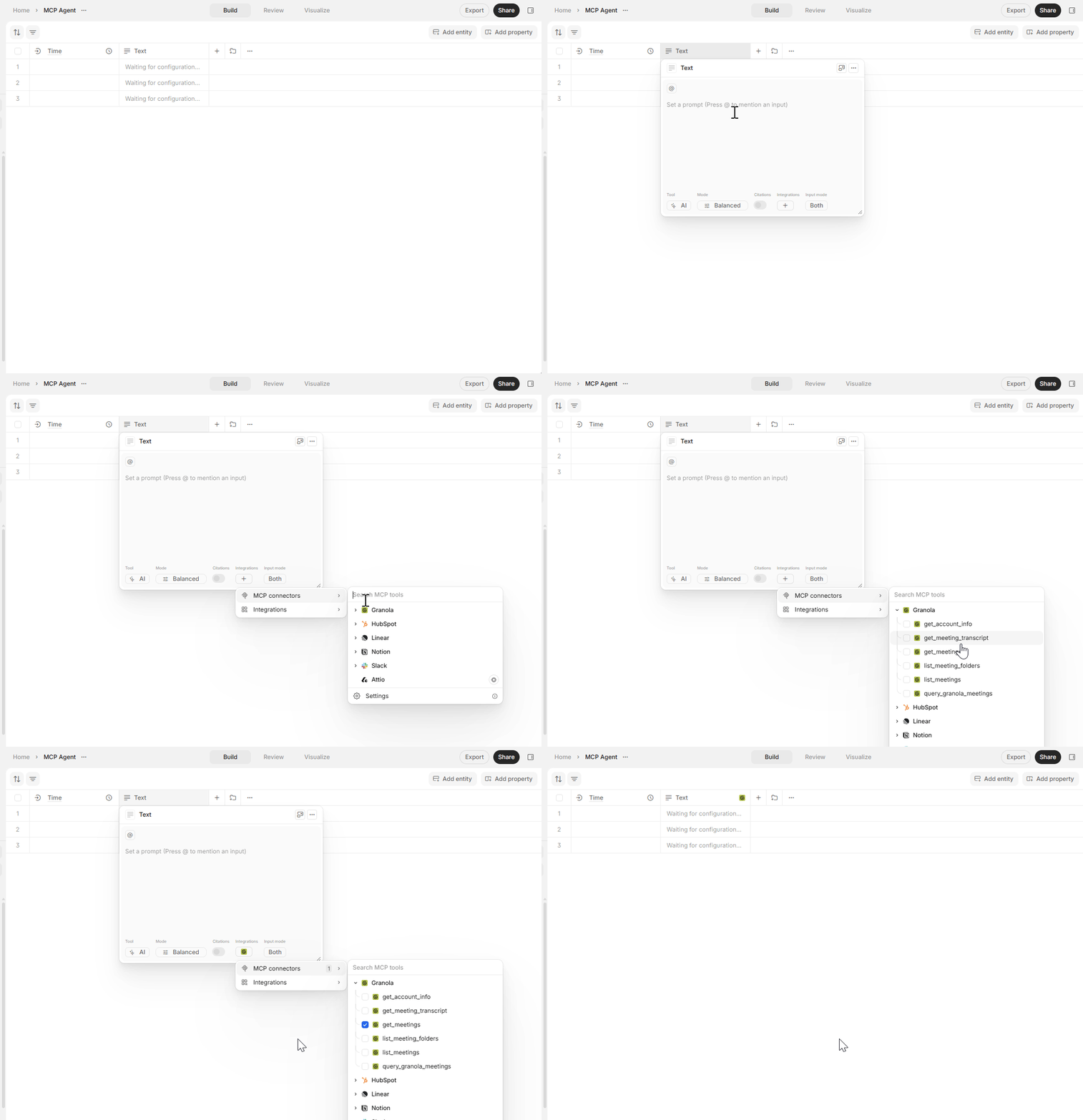
Adding MCP directly to a Workflow
The property now uses your selected MCP tools whenever it computes.
Tool Permissions and Automatic Approval
When you use MCP tools in Workflow properties, the LLM must execute tools without manual approval. This is because workflow properties compute automatically when triggers fire.
If you select tools that require approval, V7 Go prompts you to allow them. When you approve:
- The tools are set to Always Allowed
- This applies everywhere in your workspace, including chat
- You can manage tool permissions in Integrations > MCP Connectors > [Your Integration]
To check or change tool permissions:
- Go to Integrations
- Click MCP Connectors
- Select the integration (e.g., Linear, Granola, Slack)
- View which tools are set to Always Allowed vs. Needs Approval
Example: Daily Meeting Summary Workflow
Build a workflow that compiles action items from yesterday's meetings and sends them to Slack every weekday morning.
Setup:
- Create a new workflow
- Add a Time Trigger property set to run every weekday at 9 AM
- Add an Action Items property:
- Select MCP Connectors > Granola
- Check the
get_meetingstool - Prompt: "Get all action items from yesterday's meetings"
- Add a SlackMessage property:
- Select MCP Connectors > Slack
- Check the
slack_send_messegetool - Prompt: "Send the action items to the team channel."
When the trigger fires at 9 AM, the workflow:
- Retrieves meeting transcripts from Granola
- Extracts action items
- Posts a summary to Slack
Updated about 1 month ago