
Retention Policies for Workflow Runs
Retention policies control how long V7 Go keeps the runs in your workflows. A run is one row in a workflow, together with everything that belongs to it: its field values, files, and any child entities.
With retention policies you can:
- Archive runs automatically after a set number of days
- Choose how long archived runs are kept before they are permanently deleted
- Set a default for the whole workspace and override it for individual workflows
- Review archived runs and permanently delete them early if you need to
Availability: Retention policies are enabled per workspace. If your workspace settings say "Workflow runs will be permanently deleted. If you want to customize this, please contact support.", retention policies are not yet enabled for your workspace. Contact your account manager or the support team to turn them on.
How retention works
Every run goes through up to two stages:
- Archival. An archived run disappears from the workflow table, views, counts, and exports, but its data is kept. Archived runs cannot start new calculations and cannot be edited.
- Permanent deletion. After the deletion period, the archived run and its data are permanently removed. This cannot be undone.
A retention policy has two settings:
| Setting | What it does | Allowed values |
|---|---|---|
| Archive after (days) | Archives active runs automatically once they are this many days old. You can turn this off with Enable automatic archival. | Off, or a whole number from 1 to 730 |
| Permanently delete after (days) | Permanently deletes an archived run this many days after it was archived. This setting is always required. | A whole number from 1 to 730 |
Defaults
V7 Go uses the following by default:
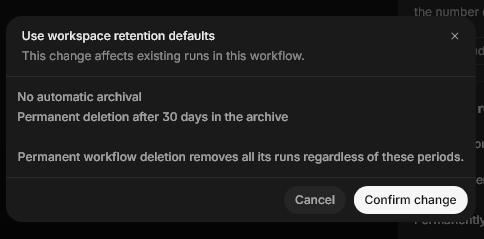
- No automatic archival
- Permanent deletion 30 days after a run is archived
There is no option to keep archived runs forever. The longest deletion period is 730 days.
When policies run
V7 Go checks retention once a day and processes eligible runs in the background. A run becomes eligible at the end of its period, but it may be archived or deleted some time after that, not at an exact minute.
What happens when you delete a run?
When retention policies are enabled for your workspace, deleting a run from a workflow archives it instead of removing it straight away. The run then follows the permanent deletion period of its workflow. With the default settings, that means permanent deletion after 30 days.
Set workspace defaults
Workspace defaults apply to every workflow that does not have its own override.
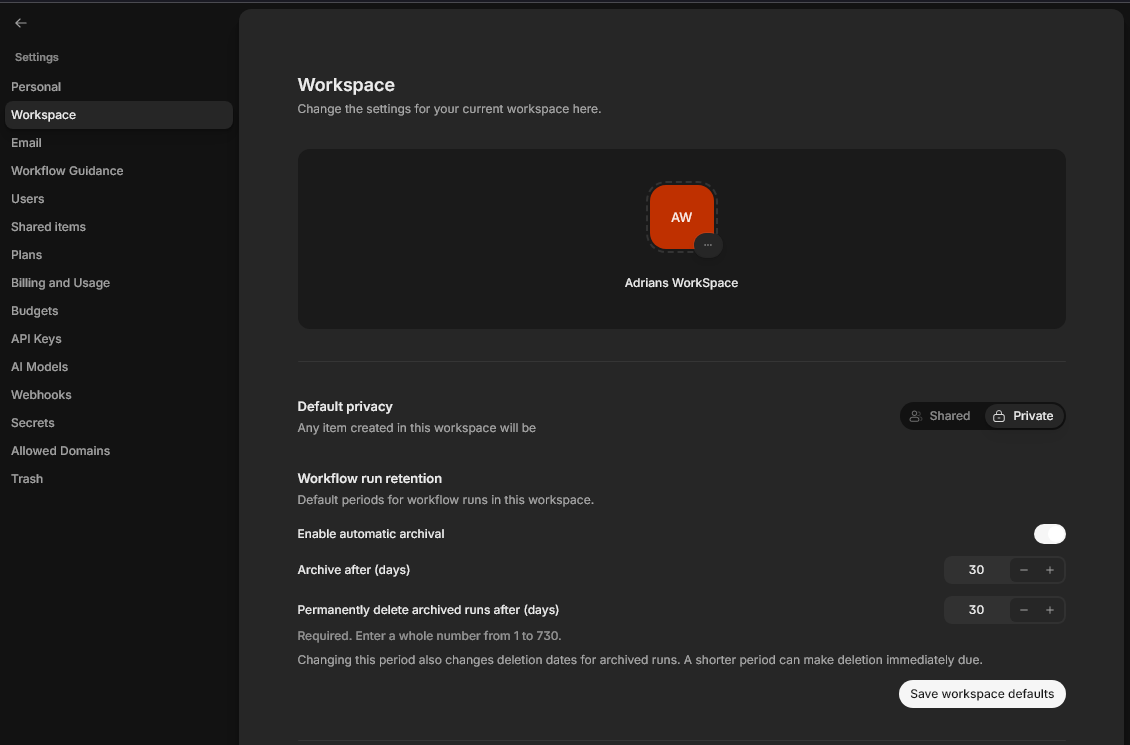
- Open Workspace settings.
- Find the Workflow run retention section.
- Turn Enable automatic archival on or off. If it is on, enter the number of days in Archive after (days).
- Enter the number of days in Permanently delete archived runs after (days).
- Click Save workspace defaults, then confirm the change.
Only an Admin has the ability to update the global Workspace workflow retention settings.
Override the policy for individual workflows
A workflow can use its own retention settings instead of the workspace defaults. An override always replaces both settings together - you cannot override only one of them.
-
Open the workflow.
-
Click on Workflow Settings > Open workflow details
-
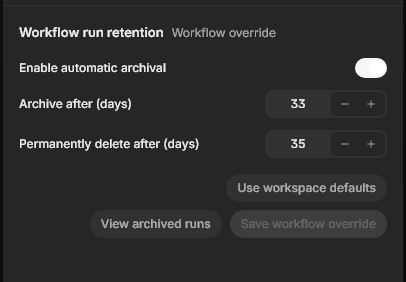
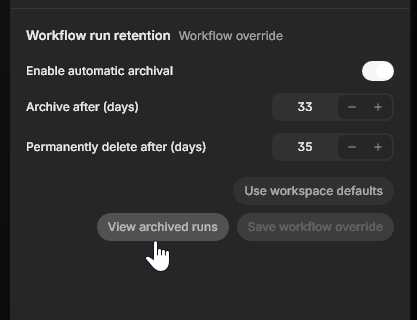
Find the Workflow run retention section. A label next to the title shows where the current settings come from: Inherited from workspace, Workflow override or Product defaults.
-
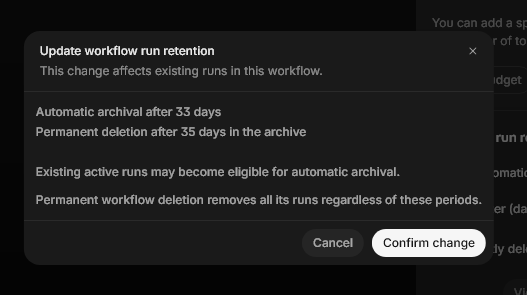
Change the settings and click Save workflow override, then click Confirm change.
To go back to the workspace defaults, click Use workspace defaults and confirm. The workflow uses the current workspace defaults straight away as listed in the next prompt:
You need permission to manage the workflow to change its override. People who can view the workflow can see its current settings. Workflow overrides can only be changed while the workflow is active, not while it is in Trash.
How changes affect existing runs
Policy changes take effect straight away and apply to runs that already exist.
- Shortening the archive period can make existing active runs eligible for archival at the next daily check.
- Changing the deletion period recalculates the permanent deletion date of runs that are already archived. The new date is the archive date plus the new period. A shorter period can make deletion due immediately.
- Already archived runs stay archived. Turning off automatic archival does not bring archived runs back.
V7 Go asks you to confirm every change for this reason.
View archived runs
You can see archived runs in two places.
From a workflow. Open the Workflow > click on Workflow Settings > Open workflow details > View archived runs:
From workspace Trash. Open Trash and go to the Workflow runs section. Archived runs are grouped by workflow. Each group shows the workflow name, the number of archived runs, and whether the workflow is active or in Trash. Expand a group to see its runs.
For each archived run you can see:
- The input file name or a short preview of the input text, or the run ID if neither is available
- When the run was created
- When it was archived
- When it is scheduled to be permanently deleted
- Whether a support hold is pausing its deletion
You cannot open the full contents of an archived run or export it.
Permanently delete archived runs early
If you need to remove data before its scheduled date:
- Open the archived runs list from the workflow or from Trash.
- Select one or more runs. You can select up to 100 at a time.
- Click Permanently delete and confirm.
Permanent deletion cannot be undone. Manual deletion ignores the waiting period and any support holds. You need permission to delete runs in that workflow.
Restore an archived run
Restoring an archived run is handled by the V7 support team.
- Select the archived runs you want back from the workflow or from Trash.
- Click Request restoration.
- A support message opens with the workflow and run IDs already filled in. Add any details and send it.
Once the request is recorded, V7 Go places a hold on the selected runs so they are not deleted on schedule while support looks into it.
Restoration is not guaranteed.If properties or data were removed from the workflow after the run was archived, some data may no longer be available. A restored run keeps its original ID and creation date, and its automatic archival period starts again.
Workflows and workspaces in Trash
- Moving a workflow to Trash does not change its runs. Their retention policy keeps applying while the workflow is in Trash.
- Permanently deleting a workflow deletes all of its runs, active and archived, regardless of the retention policy or any support holds.
- Deleting a workspace deletes all of its runs, regardless of retention policies.
For more on restoring workflows themselves, see Archive and Restore for Workflows.
Things to know
- Archiving a run does not stop calculations that were already running. They can finish and save their results, but they cannot start new calculations on the archived run.
- Removing a property from a workflow can also remove that property's values and files from archived runs.
- Usage charges for calculations that were already running when the run was archived may still apply.
- Archived runs are not included in search or filters.
- Retention policies apply to workflow runs. They do not change how long workflows and hubs stay in Trash, which is still 30 days.
FAQ
Can I keep runs forever?
You can turn off automatic archival, so active runs are never archived on a schedule. Once a run is archived, it is always permanently deleted after the deletion period, up to a maximum of 730 days.
Who can change retention settings?
People with permission to update workspace settings can change the workspace defaults. People who can manage a workflow can set or remove its override.
Does turning off retention policies delete my settings?
No. If retention policies are turned off for your workspace, saved settings are kept and come back when the feature is turned on again. While it is off, deleted runs are removed directly, and runs that were already archived are deleted 30 days after their archive date unless a support hold is in place.
Need help? Click the Support button in the app to reach our team.
Updated 43 minutes ago