
MCP Connectors
Setting up and using MCP Connectors in V7 Go
What are MCP Connectors?
Model Context Protocol (MCP) connectors allow workflows in V7 Go to securely connect to external tools and data sources through a standardized interface.
Once connected, workflows can read data, take actions, and automate workflows across your systems
Why use MCP Connectors?
Before MCP Connectors were available, connecting to external tools would require custom integrations, manual workflow, and transferring data manually between tools. With MCP Connectors, Workflows can query external data, trigger actions, and combine multiple tools in one workflow.
MCP reduces switching between tools and enables real-time access to external systems.
Adding and Managing MCP Connectors
You add and manage MCP Connectors on the MCP Connectors page located in the Integrations section of Go.
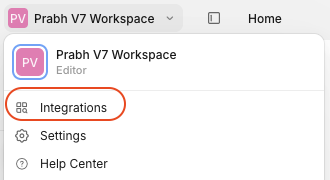
First, click on your workspace name on the top left of the page and select Integrations from the list.
Then, select the MCP Connectors tab at the top of the page.

Next, choose the desired tool from the list. When setting up an MCP Connector for the first time, you will need to authenticate your account with the external tool or service.
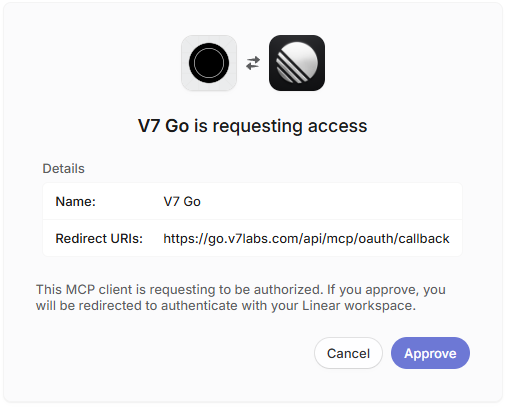
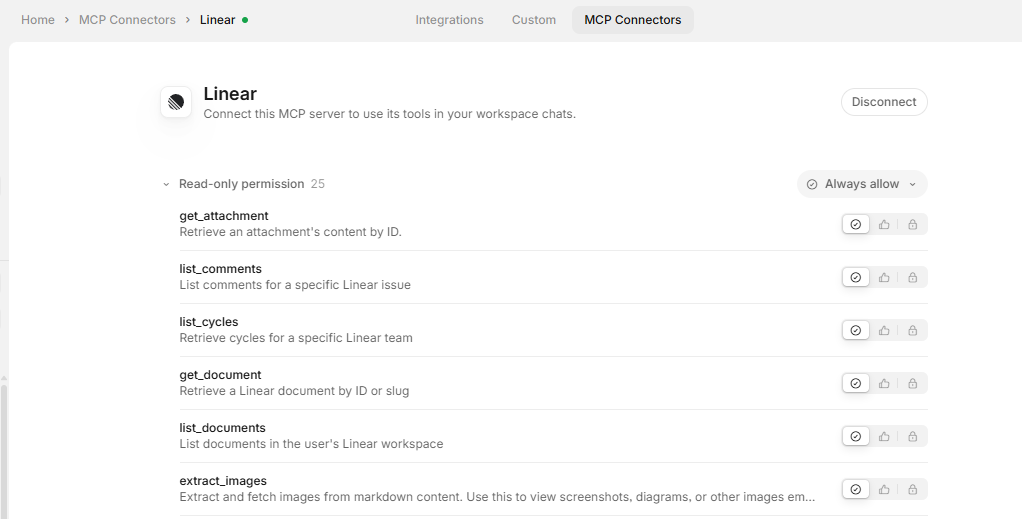
After successfully completing the connection, you can manage its permissions, which can be updated individually or in bulk.
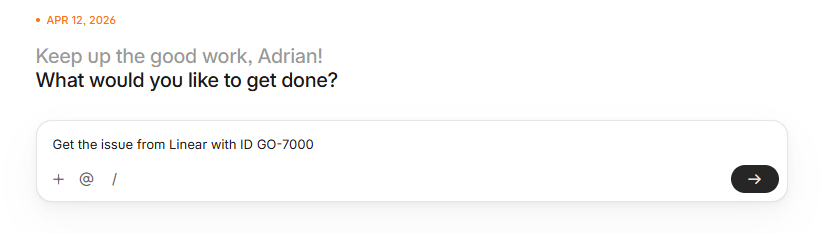
Once everything is set up, you can call it directly from a Chat or within your Workflow (see: MCP In Workflows).
Custom MCP Connectors
If your desired MCP is not on the list, you can add a custom MCP Connector by entering the URL and Name then authenticating from the MCP Connectors page:
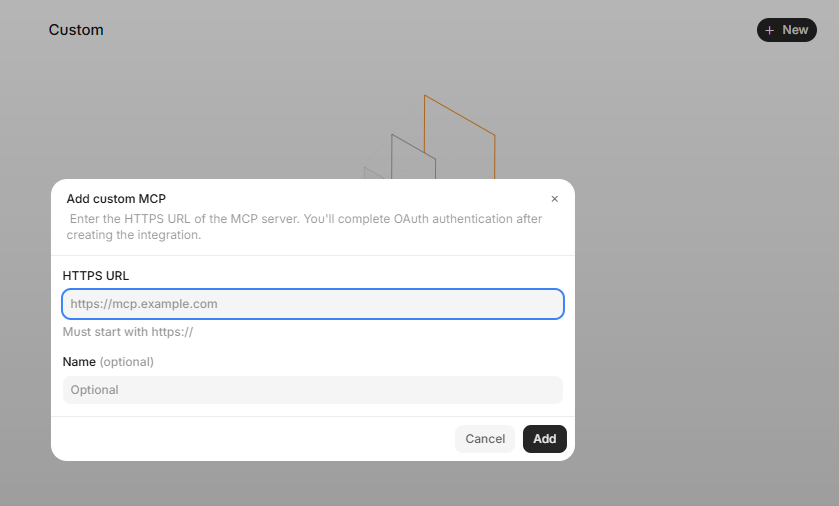
Note: In order to authenticate the MCP Connector, you need an existing account in the third-party tool you're connecting to.
If you would like to see any specific MCP Connetors supported natively, reach out to us with your request at [email protected]
Per-connector setup guides
Each native connector has its own setup page in this section. Open the page for the tool you want to connect.
If the connect card shows an error, see MCP connector errors.
Updated about 1 month ago