
Property Flow Visualization
Property Flow shows how data moves between workflow steps. See information handoffs, trace reasoning paths, and edit prompts directly from the visualization.
Property Flow Visualization
Property Flow gives you a clear view of how information moves between steps in your workflow's reasoning process.
What is Property Flow?
Property Flow visualizes the specific paths and data handoffs between reasoning steps in your workflow. You can see exactly what information moves from one step to the next and how each step transforms or uses that data.
This view helps you:
- Trace how data flows through your workflow
- Identify which properties feed into other properties
- Understand the dependencies between reasoning steps
- Debug issues by following the information chain
How does Property Flow differ from Conditional Flow?
Conditional Flow shows the decisions your workflow makes. It displays how entities route through different workflow stages based on single select property values.
Property Flow reveals the data relationships between steps. It shows which properties provide input to other properties and how information transforms as it moves through your workflow.
| Conditional Flow | Property Flow |
|---|---|
| Shows decision branches | Shows data dependencies |
| Based on single select routing | Based on property references |
| Displays workflow stages | Displays information handoffs |
Use Conditional Flow to understand routing logic. Use Property Flow to understand data transformation.
How to use Property Flow
-
Open your workflow in the builder
-
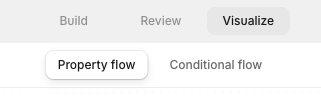
Select Visualize
-
Select Property Flow view
-
Review the visualization to see how properties connect
-
Select any property to inspect its configuration
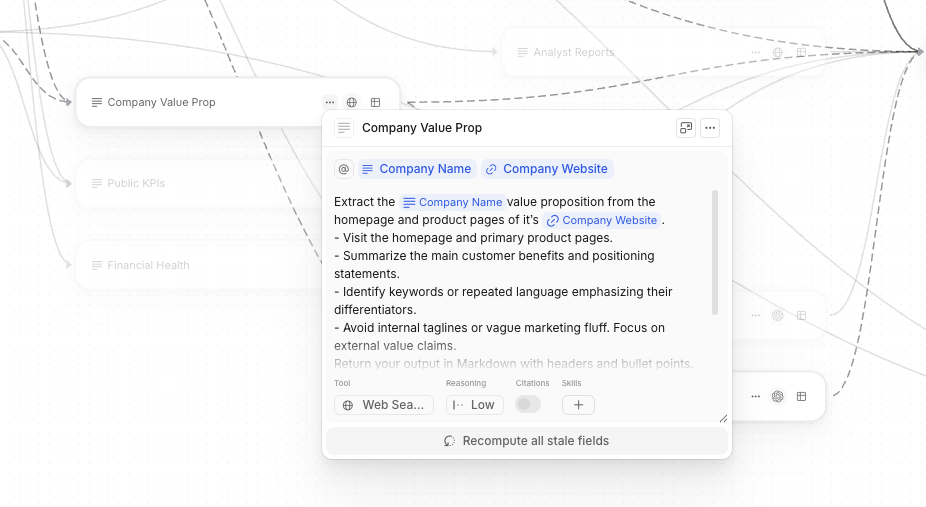
The visualization displays arrows and connections that represent data flowing from one property to another. Each connection shows which upstream properties provide context or input to downstream properties.
Edit prompts from Property Flow
You can adjust prompts directly from the Property Flow view:
-
Select a property in the visualization and select ... to open up the prompt
-
Review its current configuration
-
Edit the prompt if the workflow's behavior needs correction
-
Save your changes
This allows you to refine your workflow's reasoning without leaving the flow visualization. You can trace an issue to its source, update the relevant prompt, and verify the fix in context.
Updated about 2 months ago
What’s Next
If you have any questions, or feedback about Property Flow, please reach out to us at [email protected]